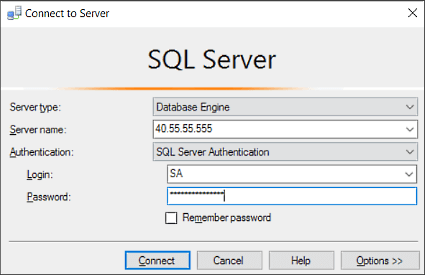
Typically, SQL Server is accessed by connecting with your company’s Active Directory account, which is your login account for your company network with servers, or by connecting with a SQL standard account, which is your login and password. To connect to a SQL Server, you must also know what tool you can use. Here you will learn about connecting to a SQL Server instance in just four easy steps.
Information Gathering in Step 1
You’ll need to be aware of the database name. Each SQL Server can host one or more databases. The name of the SQL server must be known to you. In any case, it’s crucial to know the URL, IP address, or server name.
Second Step: Credentials
Your login credentials, which you will need to connect to the SQL Server database, are the following crucial piece of information. The rules of your corporation will determine whether your account is a Windows Active Directory account or SQL Server Authentication with a login and password.
● Selecting a Tool
To explore databases and perform queries on SQL Server, select a tool and connect. Microsoft provides SQL Server Management Studio and Azure Data Studio (ADS) as two free tools for connecting to SQL Server (SSMS).
● Step 3a: Azure Data Studio Tools
Azure Data Studio is the most recent and best tool. This is a free utility from Microsoft. The word “Azure” appears in the name, however, it may connect to any SQL Server or SQL outside of Azure.
● Step 3b includes SQL Server Management as a tool
Developers and database administrators are the main users of SSMS.
● Connecting the dots
It is now time to create the Query Tool, the SQL Server, the Database, and the Login Credentials for your Account.
Using Azure Data Studio – Step 4
● Begin by opening Azure Data Studio. To launch Azure Data Studio, click Start, type “Azure Data Studio”, and then click Open.
● On the Welcome page of ADS, select Create a Connection.
● The dialogue window for connections appears. Write the server name down. The authentication type should be chosen. You could connect to an Azure SQL Database using either a SQL Login or Azure Active Directory.
Step 4b:
Tools: Open SQL Server Management Studio and log in.
Here you will learn about using SSMS in order to connect to a SQL server database.
Open SQL Server Manager Studio first. Launch SSMS by clicking, typing “SSMS,” and then clicking from the Windows Start menu. You will see a login screen when SSMS starts then you will be supposed to provide the database name to which you want to connect. Then press the option key and put the database name in the Connection Properties Tab. It is recommended that you should use SSMS to connect SQL server.
Wrap Up
Connecting to SQL Server now requires you to know what you need. Azure Data Studio, which can connect to almost any SQL Server or Azure Database, and SQL Server Management Studio, which is built for analysing databases and executing queries, are two frequently used SQL tools. Azure Data Studio is recommended for the basics.