Every server will fail eventually. A disk will wear out, an update will go wrong, an employee will delete the wrong folder, or an attacker will encrypt your files and demand payment. The only question is whether you will be ready when it happens.
A solid server backup strategy is the difference between a bad afternoon and a business-ending disaster. This guide explains the famous 3-2-1 backup rule in simple terms, shows how to apply it to a website or hosting account, and covers automation, offsite storage, ransomware protection, and disaster recovery planning. You will also get a practical checklist you can use today.
Quick Answer: What Is the 3-2-1 Backup Rule?
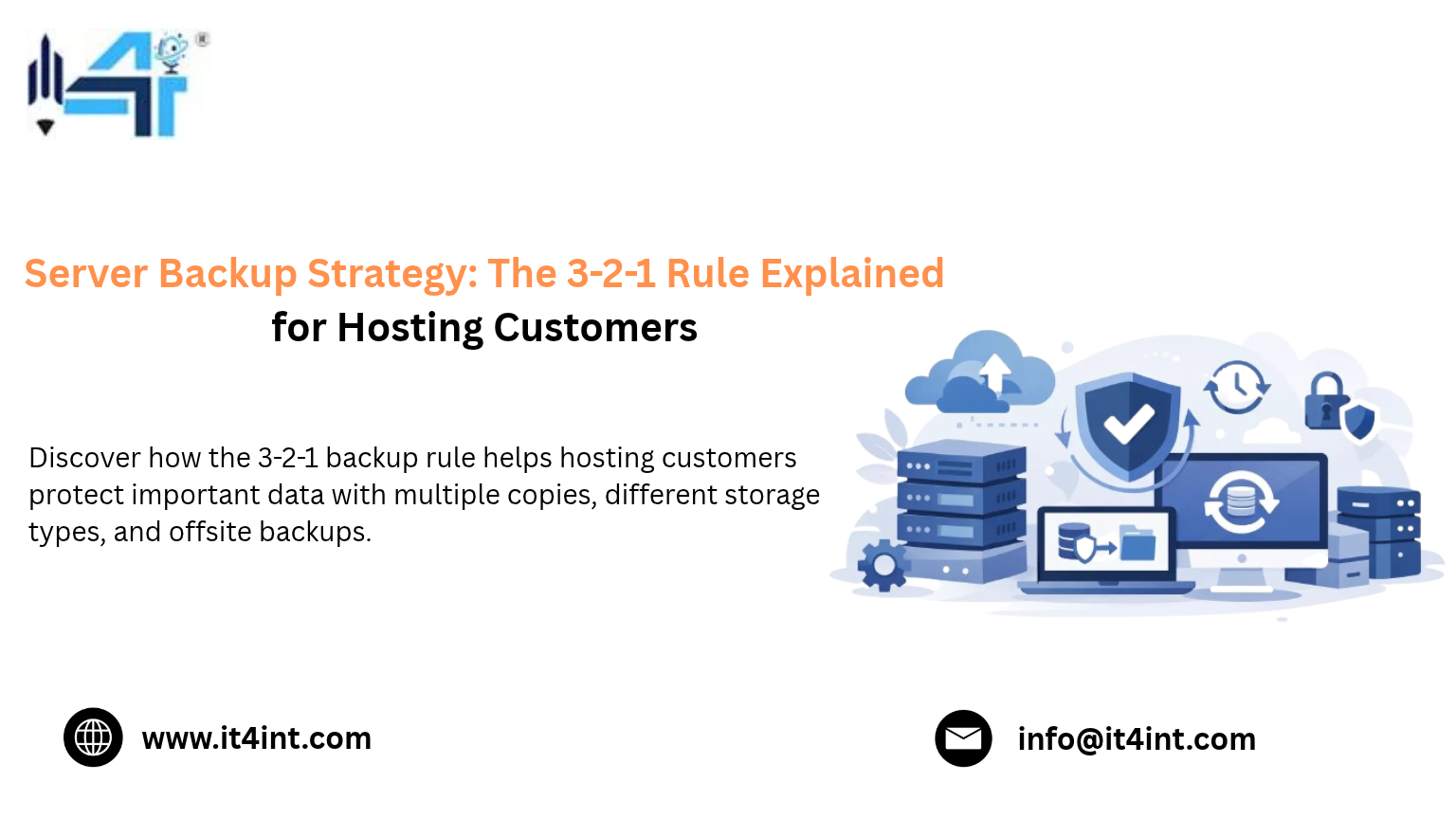
The 3-2-1 backup rule says you should keep at least three copies of your data, on two different types of storage, with one copy stored offsite.
- 3 copies: your live (production) data plus two backups.
- 2 media types: for example, the server’s disk plus a separate storage system or cloud object storage, so a single kind of failure cannot destroy everything.
- 1 offsite copy: at least one backup in a different physical location or provider, protected from fire, theft, provider outages, and account compromise.
Many security experts now recommend an updated version, 3-2-1-1-0: add one copy that is offline or immutable (it cannot be changed or deleted), and make sure backups are tested so there are zero errors on restore.
Why Hosting Customers Cannot Assume They Are Covered
Many customers assume the hosting company backs up everything automatically. That assumption has ruined plenty of websites.
- Host backups are often limited. Some plans include only occasional snapshots, short retention, or no backups at all.
- Most terms of service say backups are your responsibility. Hosts rarely promise to restore your data on demand.
- Backups stored on the same server are not safe. If the server is hacked, destroyed, or suspended, the backups go with it.
- Account-level problems affect everything. A billing dispute, a suspended account, or a compromised control panel can remove both your site and your backups at once.
- Restores may be slow or incomplete. A snapshot that nobody has tested may not restore cleanly.
Treat provider backups as a helpful extra, never as your only plan.
VPS Server Plans
Explore IT4INT VPS server plans for reliable, high-performance hosting with fast SSD storage, Linux and Windows OS options, full root access, scalable resources, and 24/7 technical support. Choose a VPS hosting plan that fits your website, application, or business needs.
What Can Go Wrong: The Risks Backups Protect Against
Backups protect against hardware failure, human error, failed updates, hacking, ransomware, provider outages or account suspension, and natural disasters. Different threats need different protections, which is why the 3-2-1 structure works so well.
The 3-2-1 Rule Explained in Detail
The “3”: three copies of your data
Your original data on the server counts as the first copy. You then need two additional backups. Why three? Because backups fail too. If the chance of a single backup failing is small, the chance of two independent backups failing at the same moment is far smaller.
The “2”: two different media or storage types
Do not put both backups on the same kind of system. For example:
- Copy 1: your live server disk
- Copy 2: a separate backup server, network storage, or external disk
- Copy 3: cloud object storage at another provider
The point is to avoid one failure mode, such as a storage-controller bug or a vendor-wide outage, wiping out every copy.
The “1”: one copy offsite
Offsite backups protect against site-level disasters. For hosting customers, “offsite” means a different data center and ideally a different provider and different login credentials. If your hosting account is compromised, the attacker should not automatically gain access to your backups.
The modern upgrade: 3-2-1-1-0
- The extra 1: one copy that is offline, air-gapped, or immutable. Immutable storage uses write-once settings (often called object lock) so that nobody, including an attacker with admin credentials, can alter or delete the backup for a set period.
- The 0: zero errors after verification. A backup is only real if it restores successfully.
What to Back Up on a Server
Do not guess. Make a list of everything required to rebuild your service:
- Website files: code, themes, plugins, uploads, and media
- Databases: MySQL, MariaDB, PostgreSQL, or others (use consistent dumps or snapshots)
- Configuration files: web server, PHP, firewall, cron jobs, and application settings (/etc as needed)
- Email data, if you host mailboxes
- SSL certificates and keys, stored securely
- Application secrets and environment files, stored encrypted
- Server images or infrastructure scripts, so you can rebuild quickly
- DNS records, exported or documented
- Documentation, such as installation steps, credentials in a password manager, and contact lists
Backing up only the website folder is a classic mistake. Without the database and configuration, you cannot restore a working site.
Types of Backups
Full backup. A complete copy of selected data. Simple to restore, but it uses the most time and storage.
Incremental backup. Copies only data changed since the last backup of any type. It is fast and small, but a restore needs the last full backup plus every incremental after it.
Differential backup. Copies everything changed since the last full backup. It is larger than incremental but simpler to restore.
Snapshot. A point-in-time image of a disk or virtual machine, often fast and convenient. Snapshots stored on the same infrastructure are not a complete backup on their own.
Database dump or logical backup. An export of database contents, such as mysqldump or pg_dump, which is portable and easy to inspect.
A common schedule mixes them: a weekly full backup, daily incrementals, and database logs or hourly dumps for critical data.
Automated Server Backup: Why It Matters
Manual backups depend on someone remembering, and people forget. An automated server backup runs on schedule, every time, without requiring attention.
Good automation includes:
- A schedule that matches how often your data changes
- Automatic rotation and retention, so old backups expire and storage does not fill up
- Encryption before data leaves the server
- Alerts for failures, not only successes
- Logs and reports you can review
- Automatic transfer to offsite storage
Tools you can use
- Control panel backups in cPanel, Plesk, and similar panels, for simple cases
- rsync and cron for file-level copies on Linux
- BorgBackup and restic: efficient, deduplicating, encrypted backup tools that work with many storage backends
- Rclone to sync data to cloud storage
- Database tools, such as mysqldump, pg_dump, or Percona XtraBackup
- Cloud snapshots and managed backup services from your infrastructure provider
- WordPress backup plugins, which are convenient but should send copies off the server
A basic example using restic and a cron job gives you encrypted, incremental backups to an S3-compatible bucket:
# Initialize the repository (once)
restic -r s3:s3.example.com/my-backups init
# Daily backup of site files and database dumps
restic -r s3:s3.example.com/my-backups backup /var/www /backup/db-dumps
# Keep 7 daily, 4 weekly, and 6 monthly snapshots
restic -r s3:s3.example.com/my-backups forget –keep-daily 7 –keep-weekly 4 –keep-monthly 6 –prune
Store the repository password in a safe place that is separate from the server. Without it, your backups cannot be restored.
Offsite Backups: Where to Store Them
Good offsite options include:
- Object storage from a different provider than your host, such as S3-compatible services
- A second hosting provider or backup server in another region
- Dedicated backup services with retention and encryption features
- Physical media kept elsewhere, useful for very large data or an extra offline copy
Tips for safe offsite storage:
- Use separate credentials from your main hosting account, with minimal permissions.
- Prefer “write-only” or “append-only” access for the server doing the backup, so a compromised server cannot delete old backups.
- Turn on versioning and object lock where available.
- Encrypt data and manage keys carefully.
- Check data location rules if you handle regulated or personal data.
Ransomware Backup: Protecting Your Last Line of Defense
Modern ransomware often hunts for backups first. Attackers know that if you can restore your data, you will not pay. A good ransomware backup design assumes the attacker will gain access to your server and try to destroy your backups.
Protect your backups with these measures:
- Immutability. Use object lock or write-once storage so backups cannot be changed or deleted during the retention period.
- Offline or air-gapped copies. Keep at least one copy that is not continuously connected to your network or accounts.
- Separate credentials and accounts. Do not use the same admin login for production and backup storage. Use multi-factor authentication on both.
- Least privilege. Let the backup process add data but not delete it.
- Versioning and long enough retention. Ransomware may quietly corrupt files for days or weeks. If your only backup is from last night, it may already contain encrypted data.
- Monitoring. Watch for sudden changes in backup size, unusual deletion attempts, and failed jobs.
- Clean restore environment. Restore to a clean, patched server, not to the compromised one, and fix the entry point before reconnecting.
- Regular testing. Confirm that restores work and that your team knows the procedure.
Remember that a backup stored on a mounted network drive can be encrypted along with the rest of the system. Connection is risk.
RPO and RTO: Two Numbers You Must Decide
Before choosing a schedule, answer two questions.
Recovery Point Objective (RPO): How much data can you afford to lose? If your answer is “no more than one hour of orders,” you need hourly backups or continuous database protection. If “one day” is acceptable, daily backups may do.
Recovery Time Objective (RTO): How long can you be offline? If a store loses significant revenue every hour, you need fast restore options, such as ready-to-launch server images or a warm standby, not a multi-day rebuild.
These numbers drive your costs and design. Write them down, and share them with the people responsible for hosting.
Building a Disaster Recovery Plan
Backups are only one part of a disaster recovery plan. A plan describes what to do, who does it, and in what order when something goes wrong.
A practical plan includes:
- Scope and priorities. List systems and rank them by importance. Restore the money-making and customer-facing services first.
- Roles and contacts. Name who makes decisions, who restores, and who communicates. Keep contact details somewhere that does not depend on the failed system.
- Access and credentials. Ensure a trusted person can reach the backup storage, the encryption keys, the DNS account, and the hosting account even in an emergency.
- Step-by-step restore instructions. Write the exact order: provision a server, install software, restore the database, restore files, update DNS, test.
- Communication plan. Prepare messages for customers, staff, and, where required, regulators. Host a status page away from your main infrastructure.
- Alternative environment. Know where you would run the site if your host were unavailable, such as a second provider or cloud region.
- Testing schedule. Practice restores and run a full recovery drill at least once or twice a year.
- Review and update. After any incident or system change, update the plan.
A plan that lives only in one person’s head is not a plan.
Test Your Backups: The Step Most People Skip
A backup that has never been restored is an unproven assumption. Many people discover too late that their backups were empty, corrupted, incomplete, or encrypted with a lost password.
How to test:
- Check automatically. Use tools that verify checksums and report errors.
- Do routine sample restores. Monthly, restore a few files and one database to a test location.
- Do full restore drills. At least twice a year, rebuild a complete copy of your site on a separate server and confirm that it works.
- Time the process. Compare the actual restore time to your RTO.
- Document what you learn, and fix gaps immediately.
Retention: How Long to Keep Backups
Retention depends on your risk, storage budget, and legal obligations. A common pattern is:
- Hourly or daily backups kept for one to two weeks
- Weekly backups kept for one to two months
- Monthly backups kept for six months to a year or longer
Longer retention helps when problems are discovered late, such as slow data corruption or a hidden infection. Some industries must retain data for specific periods, while privacy laws may require that personal data be deleted after a time. Check the rules that apply to you.
Server Backup Strategy Checklist
- Inventory of all data, databases, and configuration to protect
- RPO and RTO defined and written down
- At least three copies, on two media types, with one offsite
- One immutable or offline copy
- Automated schedule with encryption and retention rules
- Separate credentials and multi-factor authentication for backup storage
- Alerts for failed or missing backups
- Monthly sample restores and twice-yearly full restore drills
- Written disaster recovery plan with contacts and steps
- Encryption keys and passwords stored safely and separately
- Plan reviewed after every major change or incident
Conclusion
Backups are the one security measure that still helps when every other defense fails. A sound server backup strategy follows the 3-2-1 rule: three copies of your data, on two different types of storage, with one copy offsite. Upgrade it with an immutable or offline copy and with regular restore tests, and you will be prepared for hardware failures, human mistakes, and ransomware alike.